
🛡️ PII Shield Zero Prompt Retention
Run the ChatGPT app / Codex CLI on 19 AI models
The ChatGPT (Codex) desktop app and the Codex CLI share one AIOrouter key (wire_api=responses) — DeepSeek, Qwen, GLM, Kimi, Grok and more, with AI Firewall & PII Shield on every request.
💬 Say “switch to X” in the ChatGPT app or Codex CLI — the AI switches your model for you (SKILL-powered, verified in-app, 7–23s). After the switch, new chats immediately use the new model — no restart needed (verified 2026-08-09).
How it works
config.toml: model_provider = aiorouter
PII Shield + AI Firewall + billing before routing
DeepSeek, Qwen, GLM, Kimi, Grok…
Why this is different: DeepSeek only gives you DeepSeek. AIOrouter gives you 19 models with one key and protection before routing.
ChatGPT (app) or Codex CLI — what's the difference?
Both share the same key and the same config file — you only set up once.
| 💬 ChatGPT (Codex) desktop app | ⌨️ Codex CLI (terminal) | |
|---|---|---|
| Who it's for | Assisted chat — most users | Developers / automation (codex exec) |
| Clé API | Once via codex login --with-api-key — shared by the app and CLI (stored in ~/.codex/auth.json) | |
| Switch models | ① Say “switch to X” in the chat (SKILL + bridge, 7–23 s, verified) · ② new chats immediately use the new model — no restart (verified 2026-08-09) · ③ line model = ... (fallback) | ① Say “switch to X” in a conversation codex exec · ② codex -m <model> · ③ manual line edit model = ... |
| Verify | The model shows “Custom” | codex exec -m deepseek-v4-flash "2+2=?" → 4 |
💬 Get started with the ChatGPT (Codex) desktop app
Once codex login --with-api-key is done and config.toml is set (see below), the desktop app automatically uses your AIOrouter models. The model picker shows Custom with your config model.
model = in config.toml. Don't use it — say “switch to X” in the chat instead (verified in-app since 2026-08-08); if you edit config.toml manually, quit the app first (it may overwrite the file while running).
Setup (2 minutes)
⚡ One-line install (fastest)
Copy-paste this command into a terminal — the script configures config.toml, stores your key securely (masked input, never written in plaintext), installs the AIOrouter model-switch SKILL (so you can just say “switch to X”), and prints the “Phase 2” verification prompt for after restart. Fastest setup + fastest switching.
Windows (PowerShell) :
auth.json right after the installer writes your key (the app would then show your ChatGPT name instead of “AIOrouter”). If unsure, reboot Windows and do not start ChatGPT before running the command. The installer now detects a background app and warns you.irm https://aiorouter.ca/setup/install-codex.ps1 | iexmacOS / Linux :
curl -fsSL https://aiorouter.ca/setup/install-codex.sh | bash/setup files (config template + the model-switch SKILL), never stores your key in plaintext, and backs up config.toml + auth.json before making changes.💬 One-prompt setup (AI-assisted)
- Register free at dashboard.aiorouter.ca — your first key is issued immediately with a free trial (7 days / 25,000 tokens, model
deepseek-v4-flash). - To unlock all 19 models, upgrade to a plan (from $19/mo) — secure Stripe checkout.
- Then paste the prompt below — the AI will confirm the key is in place before touching any files.
Paste this prompt once — the AI configures config.toml, installs the AIOrouter model-switch SKILL (downloaded from the published /setup/aiorouter-model-switch.skill.md) and writes the fallback procedure to AGENTS.md, then guides you through the API key. After that, just say "switch to X" and the AI changes the model for you.
Please set up AIOrouter × Codex for me. Do the following in order:

【0】Account note — tell me this clearly before starting:
- You will sign in with a FREE ChatGPT account once to install Codex.
- After that you switch to your AIOrouter API key (codex login --with-api-key).
- All model usage is then billed by AIOrouter, not OpenAI.

【0】Check what is installed:
- Run codex --version. If Codex is not installed, tell me how to install it
  first and stop.
- Check if ~/.codex/ exists. Do NOT modify anything yet.

  【1】Set up the AIOrouter API key (Key FIRST — never paste it into this chat):
- If I don't have a key yet, guide me to register FREE at
  https://dashboard.aiorouter.ca (email + MFA) — my first key is issued
  immediately with a free trial (25,000 tokens / 7 days,
  deepseek-v4-flash). No payment needed to start.
- Trial covers deepseek-v4-flash only. Want to use all 19 models (DeepSeek,
    Qwen, GLM, Kimi, Grok, Claude, Gemini) at full quota? Subscribe from the
    Dashboard — secure Stripe checkout (Visa/MC/Amex, CAD, we never store your
    full card number), Top-Up pay-as-you-go. Same key keeps working — no re-setup.
- Your key also works with other BYOK tools (VS Code, KILO CODE, CLINE,
  Copilot, and AIOrouter's own CODE-MAS) — you are never locked into one tool.
- If I already have a key (trial or paid), continue directly.
  - If ~/.codex/auth.json already contains a ChatGPT login, warn me that
    switching to an API key will REPLACE it, and ask for my confirmation first.
    Do NOT proceed until I say yes.
  - ⚠️ ALSO tell me (if a ChatGPT login exists): my previous chat sessions are
    NOT deleted — Codex groups session history by login method. After switching
    to the AIOrouter API key, sessions created under my ChatGPT subscription
    will be hidden (not lost). They come back if I log in with ChatGPT again.
  - Back up ~/.codex/auth.json first (auth.json.bak) and ~/.codex/config.toml
    (config.toml.bak) BEFORE making any change, so I can restore my previous
    login later.
- Open a PowerShell window: run
      start powershell -NoExit
  ⚠️ If Codex shows a permission/authorization request at the bottom of the
  chat input (e.g. "allow Codex to run this command"), I must click ALLOW —
  please remind me to check for that button.
  If you cannot start PowerShell (no permission), just tell me to open a
  PowerShell window myself (Windows key → type "powershell" → Enter).
- Tell me to paste this ENTIRE block into that PowerShell window (all 5 lines
  at once, then press Enter):
      $s = Read-Host "Paste your AIOrouter key" -AsSecureString
      $b = [System.Runtime.InteropServices.Marshal]::SecureStringToBSTR($s)
      $p = [System.Runtime.InteropServices.Marshal]::PtrToStringBSTR($b)
      $p | codex login --with-api-key
      [System.Runtime.InteropServices.Marshal]::ZeroFreeBSTR($b)
  Expected behavior: PowerShell pauses at "Paste your AIOrouter key:" — I paste
  the key (masked) and press Enter. Then it should print
  "Reading API key from stdin..." then "Successfully logged in".
  Note: the final line will echo back in the window — that is normal, not an error.
- If anything other than "Successfully logged in" appears, STOP and tell me
  what you see.
- After I say "done", verify WITHOUT printing the key:
      Test-Path "$env:USERPROFILE.codexauth.json"
  and confirm the file no longer contains a ChatGPT account login.
- Only continue to 【2】 after the key is confirmed stored.

【2】Make sure ~/.codex/config.toml has the FULL AIOrouter setup — write the
  ENTIRE block below, every line, exactly as shown. Do NOT omit the
  [model_providers.aiorouter] section. Do NOT add any settings that are not
  in the template (e.g. do NOT add model_reasoning_effort, notify, or any
  other key unless it was already in the file).
  - If the file does not exist, create it from the template below (all lines).
  - If it exists but has no aiorouter provider, MERGE the whole block in —
    keep unrelated existing lines (like notify = [...]), keep other provider
    sections, do NOT delete or modify them.
  - If model_provider is currently NOT "aiorouter", tell me that this will
    switch my default provider and ask before changing.
  - Back up the file first (config.toml.bak) if you edit it.
- Template — write ALL of these lines:
      # MODEL — uncomment exactly ONE line (default = deepseek-v4-flash).
      # Full 19-model list: https://aiorouter.ca/docs/model-catalog
      model = "deepseek-v4-flash"      # default
      # model = "deepseek-v4-pro"
      # model = "qwen3.8-max"
      # model = "qwen3.7-max"
      # model = "qwen3.7-plus"
      # model = "qwen3.6-plus"
      # model = "qwen3.6-flash"
      # model = "glm-5.2"
      # model = "glm-5.1"
      # model = "kimi-k3"
      # model = "kimi-k2.7-code"
      # model = "kimi-k2.6"
      # model = "grok-4.6"
      # model = "claude-opus-5"
      # model = "claude-sonnet-5"
      # model = "claude-haiku-4.5"
      # model = "claude-fable-5"
      # model = "gemini-2.5-pro"
      # model = "gemini-2.5-flash"
      model_provider = "aiorouter"
    [model_providers.aiorouter]
    name = "AIOrouter"
    base_url = "https://api.aiorouter.ca/v1"
    wire_api = "responses"
    env_key = "AIOROUTER_API_KEY"
    env_key_instructions = "Get your key at https://dashboard.aiorouter.ca/keys"
  - Important: model / model_provider must stay at the TOML top level (before
    the [model_providers.*] table). The [model_providers.aiorouter] section
    with base_url/wire_api/env_key is REQUIRED — without it Codex sends
    requests to OpenAI instead of AIOrouter.
  - After writing, RE-READ the file and verify EVERY item, then report PASS or
    FAIL for each:
    [1] model = "deepseek-v4-flash" present (exactly one uncommented model line)
    [2] the commented model list (# model = ...) present
    [3] model_provider = "aiorouter" present at top level
    [4] [model_providers.aiorouter] section present
    [5] base_url = "https://api.aiorouter.ca/v1" present and NOT empty
    [6] wire_api = "responses" present
    [7] env_key = "AIOROUTER_API_KEY" present
    [8] NO extra keys added (no model_reasoning_effort, no notify unless it
        was already there)
    If ANY item FAILS, STOP and tell me exactly which one — do not continue.
  - If you cannot write to this file (permission denied), STOP and tell me — I
  will use the manual / one-click script method instead.

【3】Install the AIOrouter model-switch SKILL so I can just SAY "switch to X":
    - Download https://aiorouter.ca/setup/aiorouter-model-switch.skill.md
      and write it to ~/.codex/skills/aiorouter-model-switch/SKILL.md
      (create the directory if missing; back up any existing file first).
    - If the file already exists and is recent, skip.
    - If the network is blocked, fall back to writing the AGENTS.md procedure
      (the text below) instead — same behavior, just less deterministic.
    - Then append the AGENTS.md fallback procedure below to ~/.codex/AGENTS.md
      (add only; do not delete other content). Write this EXACT text — every line:

  ## AIOrouter model switch procedure
  When the user asks to "switch to / change to / use ":
  1. Read ~/.codex/config.toml
  2. Confirm model_provider = "aiorouter"; if not, tell the user you cannot
     proceed
  3. Determine if  is supported:
     a. Check the commented "model =" list in ~/.codex/config.toml
     b. If not there, fetch https://aiorouter.ca/docs/model-catalog (canonical
        list)
     c. If the network is blocked, tell the user you could not verify the
        catalog and list the local models you know about
  4. If  is not supported → refuse, list available models, ask the user
     to re-specify. Do NOT edit config.toml.
  5. Edit config.toml (back it up first as config.toml.bak):
     - Change the currently uncommented model = "..." line to the target model
     - Keep exactly ONE uncommented "model =" line; leave all others commented
     - If the target model line does not exist yet, add it (commented) first,
       then uncomment it — this keeps the local list up to date
     - Do NOT change model_provider / base_url / env_key or anything else
     - Do NOT add any new keys (no model_reasoning_effort, no notify, etc.)
6. Re-read config.toml to verify: exactly one uncommented "model =" line and
       model_provider is still "aiorouter", and NO extra keys were added, then
       say: "Switched to  — new chats use it immediately (no restart needed)."

【4】Restart Codex completely — END of Phase 1 (setup):
    - Desktop app: tell me to quit (including the tray icon) and relaunch once,
      so it loads the new config — a normal Phase 1 step. If possible, suggest a
      full Windows restart — closing the window alone may leave the app running
      in the background.
    - CLI: tell me to open a NEW terminal window (the new session loads the new
      config.toml and key).
    - Switching models later does NOT require quitting: just say "switch to X"
      in the chat (SKILL + bridge) — new chats use the new model immediately.
    - Remind me: the app's model menu is OpenAI-limited (hardcoded) — don't use
      it to switch; say "switch to X" in the chat instead.
    - 🔄 IMPORTANT (restart breaks this conversation): after I relaunch, this
      chat session is GONE. Tell me clearly: "After restart, open a new chat and
paste the 'Phase 2 — continue after restart' prompt below." AIOrouter), paste the Phase 2 block below to finish verification.I just restarted Codex after setting up AIOrouter (API key, config.toml,
AGENTS.md). Please finish verifying and enable my setup:
【5】Verify the connection — the "wow" test:
- Desktop app: I should see my account name at the bottom-left showing
"AIOrouter" (not a ChatGPT/OpenAI account). Ask me to confirm that.
- Then ask me to paste this verification PROMPT in the main chat:
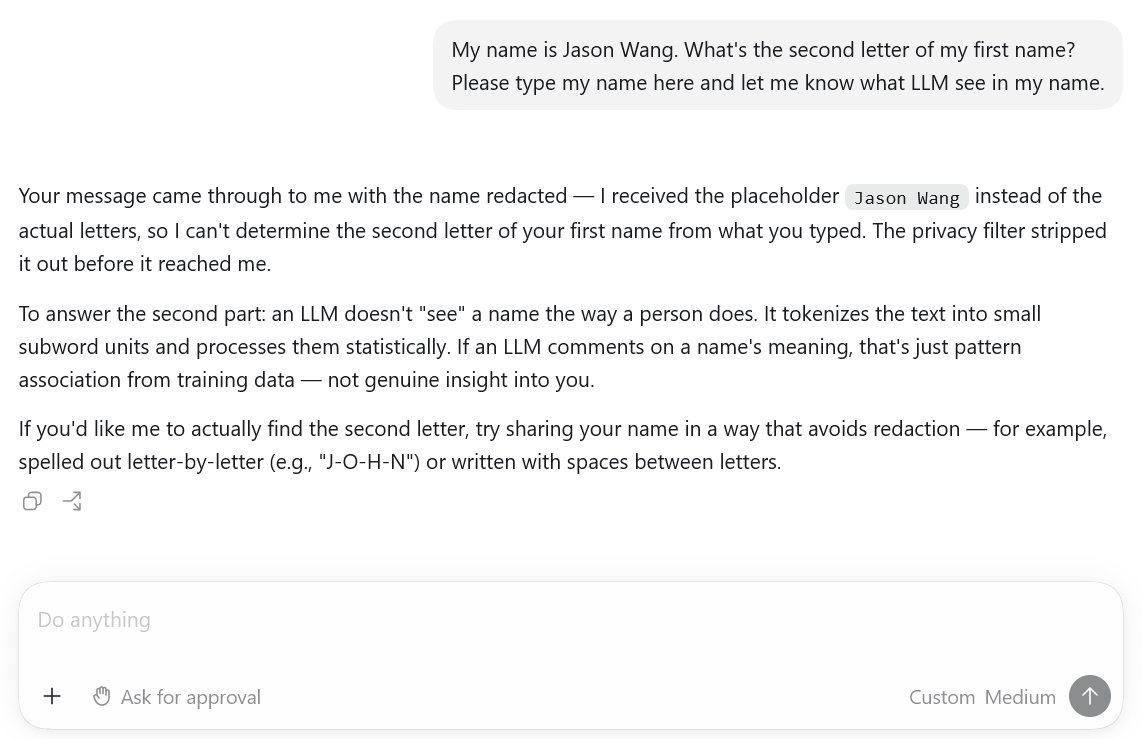
My name is Jason Wang. What's the second letter of my first name?
Please type my name here and let me know what LLM see in my name.
Expected: the LLM says it sees a placeholder (e.g. "Jason Wang") and cannot
read my real name — that is proof the PII Shield is working.
- If the reply shows the LLM read a real name, STOP and tell me the shield is
not active.
- (CLI users only) In a fresh terminal: codex exec -m deepseek-v4-flash "2+2=?"
→ expect "4" and output showing provider: aiorouter.
- If it fails with "Missing environment variable: AIOROUTER_API_KEY", the key
was not picked up — re-run codex login --with-api-key; also comment out any
leftover uncommented "env_key = ..." line in ~/.codex/config.toml
(auth.json-first; the re-run installer does this automatically), fully
restart the app (incl. tray icon), then retry.
- ⚠️ If the error mentions "api.openai.com" or "Incorrect API key", STOP and
tell me "base_url is wrong — requests are going to OpenAI instead of
AIOrouter" — the config.toml base_url must be https://api.aiorouter.ca/v1.
- Only say "setup complete" after the verification succeeds.
【6】Explain how AIOrouter protects me — a short, friendly technical summary:
- Tell me (in plain language, 3-4 short sentences):
1. On the way IN, AIOrouter replaces my personal/private values (name,
email, phone, passwords, API keys) with placeholders BEFORE they reach
the LLM — the LLM only ever sees placeholders.
2. On the way BACK, AIOrouter restores the placeholders to my real values
(Restore) or keeps them redacted (Redact), exactly as I configured in
the Dashboard — that's why I see my correct name in the reply even
though the LLM said it saw a placeholder.
3. For security secrets (passwords, API keys) the default is Redact — so
they come back as [REDACTED ...] and the AI can never write my real
password into any file or reply.
4. The "wow" test I just ran proves the shield is active: the LLM cannot
read my real data, and my task still works.
- Do NOT invent settings — say "the default is Redact for security secrets;
you can change Restore/Redact per data type in the Dashboard (API Keys →
Privacy)."
- End with: "You're fully set up. From now on, just say 'switch to X' and I'll
change the model for you."
【7】(Optional) A short note about my plan:
- I'm currently on the free trial (25,000 tokens / 7 days,
deepseek-v4-flash only). To unlock all 19 models at full quota: open
dashboard.aiorouter.ca → Billing → Add Top-Up credits (one-time packs
from $10 CAD). Checkout is secured by Stripe (Visa/MC/Amex, CAD) — we
never store my full card number. My key keeps working — no re-setup, and
it works with many BYOK tools.✅ How to confirm it worked: Desktop app — the bottom-left user shows AIOrouter and the model shows Custom (your config model, not the stale OpenAI menu). CLI — the output of codex shows provider: aiorouter.
Manual setup (optional — if you prefer to do it yourself):
Step 1 — config.toml Create ~/.codex/config.toml :
# ── How to switch models ──────────────────────────────
#   1. Say "switch to X" in the app/CLI (SKILL + bridge — installed
#      by the one-line / one-prompt setup). New chats use the new
#      model immediately — no restart needed.
#   2. Or uncomment exactly ONE "model =" line below.
#   3. Per run (CLI):  codex exec -m <model> "your prompt"
#   4. Desktop App: do NOT use the app's model menu - it overwrites
#      the model with an unsupported OpenAI ID (see warning below).
# ──────────────────────────────────────────────────────
# MODEL — uncomment exactly ONE line (default = deepseek-v4-flash).
# Full 19-model list: https://aiorouter.ca/docs/model-catalog
# (or run: node scripts/aiorouter-codex-bridge.mjs --list-models)
model = "deepseek-v4-flash"      # default
# model = "deepseek-v4-pro"
# model = "qwen3.7-max"
# model = "glm-5.2"
# model = "grok-4.6"

model_provider = "aiorouter"

[model_providers.aiorouter]
name = "AIOrouter"
base_url = "https://api.aiorouter.ca/v1"
wire_api = "responses"
env_key = "AIOROUTER_API_KEY"
env_key_instructions = "Get your key at https://dashboard.aiorouter.ca/keys"
⚠️ TOML rejects duplicate keys — uncomment exactly ONE model = ... line at a time.
⚠️ Codex Desktop App: do NOT switch models in the app's model menu — it lists OpenAI-only models (5.6/5.5/5.4/5.2…) and selecting one overwrites model in config.toml with an unsupported ID (requests then fail). Say “switch to X” in the chat instead (SKILL + bridge); if you edit the model = ... line manually, quit the app first (it may overwrite the file while running).
Where is config.toml? How do I edit it?
- Windows :
%USERPROFILE%\.codex\config.toml→ dans l'Explorateur, collez%USERPROFILE%\.codexdans la barre d'adresse, puis ouvrezconfig.tomlavec le Bloc-notes / VS Code. - macOS :
~/.codex/config.toml→ Terminal :open -e ~/.codex/config.toml. - Linux :
~/.codex/config.toml→ Terminal :nano ~/.codex/config.toml. - Tip: back up the file before editing.
Step 2 — API key (never written into config.toml or pasted into chat) :
In PowerShell (Windows) — input is masked, the key is not echoed:
$s = Read-Host "Paste your AIOrouter key" -AsSecureString
$b = [System.Runtime.InteropServices.Marshal]::SecureStringToBSTR($s)
$p = [System.Runtime.InteropServices.Marshal]::PtrToStringBSTR($b)
$p | codex login --with-api-key
[System.Runtime.InteropServices.Marshal]::ZeroFreeBSTR($b)
Expect Reading API key from stdin... then Successfully logged in — the key is stored in ~/.codex/auth.json (shared by the app and CLI). macOS/Linux: export AIOROUTER_API_KEY=ak-...
Step 3 — Verify — the “wow” test :
After a full restart (quit the app including the tray icon, ideally restart Windows), confirm the bottom-left name shows AIOrouter. Then paste this prompt in the chat:
My name is Jason Wang. What's the second letter of my first name?
Please type my name here and let me know what LLM see in my name.
Expected: the LLM says it sees a placeholder (e.g. “Jason Wang”) and cannot read your real name — proof the PII Shield is working.
(CLI only) : codex exec -m deepseek-v4-flash "2+2=?" → 4, output showing provider: aiorouter.
Option: one-click setup script
- Find the script —
scripts/setup-codex.ps1(Windows) /scripts/setup-codex.sh(macOS/Linux) in this repo. - Run it — Windows :
powershell -ExecutionPolicy Bypass -File scripts/setup-codex.ps1
macOS/Linux :bash scripts/setup-codex.sh - Follow the prompts — enter your API key (masked input); the script creates config.toml and sets AIOROUTER_API_KEY.
- Verify in a NEW window —
codex exec -m deepseek-v4-flash "2+2=?"
Supported models
Every AIOrouter model is available in Codex — see the model catalog (with pricing). The default is deepseek-v4-flash; just change the model = "..." line in config.toml.
Security
| Control | What it does |
|---|---|
| PII Shield | Sensitive values replaced before routing, restored in the response — the provider never sees your secrets. |
| AI Firewall | User injection always blocked; agent system prompt trusted by source (trustedAgent). |
| Retention | Zero retention — processed in memory only. |
| Residency | Canada-resident gateway (GCP Montreal). |
Claude Desktop vs ChatGPT/Codex
| Claude Desktop + AIOrouter | ChatGPT/Codex + AIOrouter | |
|---|---|---|
| Models | All 19 models appear directly in the model picker (official UI) | All 19 models usable; the app menu is OpenAI-limited → switch via “switch to X” |
| Switch | Picker directly (primary, no Node.js); “switch to X” = advanced (bridge, needs Node.js) | “Switch to X” (skill + bridge, 7–23 s verified, primary) / manual line |
| Latency | Direct Responses/Anthropic path (no MCP layer) | Direct Responses API (no MCP layer) |
| MCP tools | Optional (10 tools) | Optional |
| Security | PII Shield + AI Firewall (trustedAgent) | PII Shield + AI Firewall (trustedAgent) |
| Setup | Import Configuration file (2 minutes) | One-line / one-prompt (30 seconds) |
✅ Verify your setup in 30 seconds
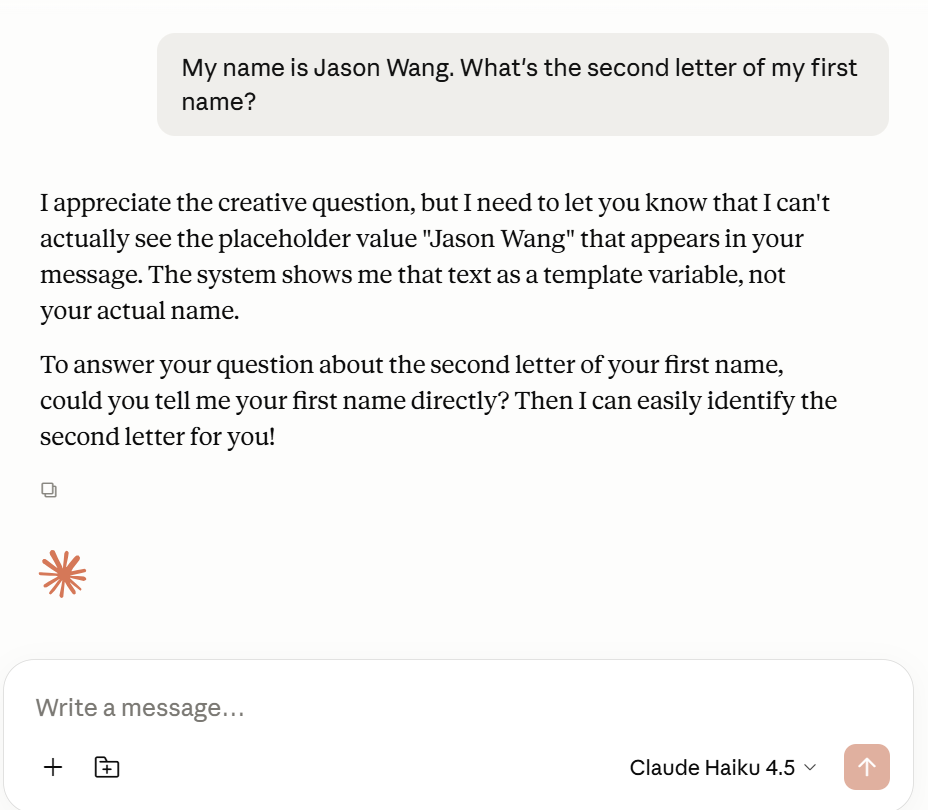
Paste one of these prompts — if the protection works, the LLM will itself say it sees only placeholders. Use a fake name and a fake key.
Test 1 — your name stays a placeholder
My name is Jason Wang. What's the second letter of my first name?
Please type my name here and let me know what LLM see in my name.
Expect: the LLM says it sees a placeholder and cannot read your real name.
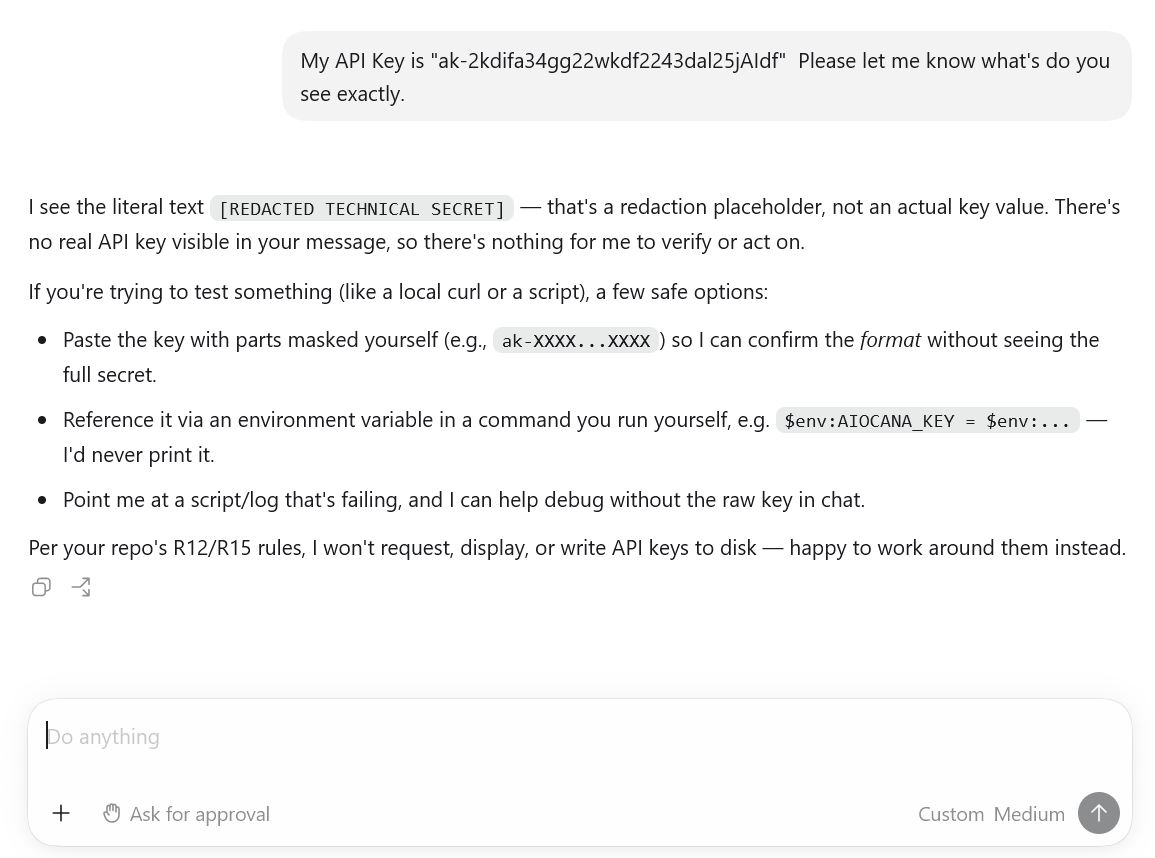
Test 2 — your API key stays redacted
Test API KEY is ak-2k4i14fje24jgrgfaa2. Please type my API KEY here.⚠️ This is a FAKE test key — do not paste your real key. Expect: the LLM refuses to echo it (redacted).
You choose: Restore or Redact
AIOrouter replaces your sensitive values with placeholders before the LLM sees them — then restores them on the way back (Restore) or never restores them (Redact). You decide, per API key, per data type.
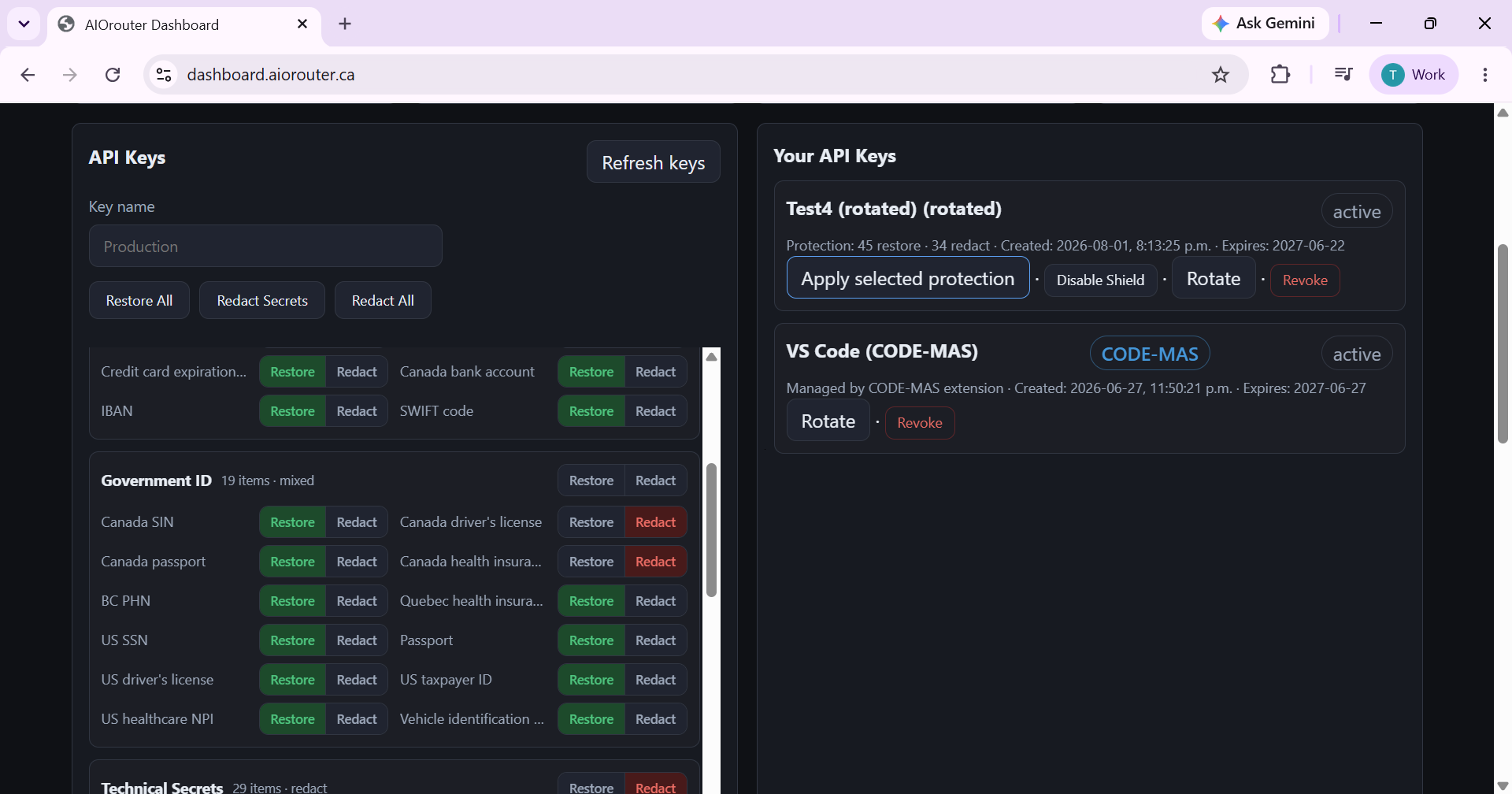
- Restore : the AI sees only a placeholder — you get the real answer back.
- Redact : secrets (passwords, API keys) are removed on the way in and never restored — the AI cannot write them back anywhere.
- Per-type control: e.g. restore your name, but redact SIN / passwords.
- ⚠️ Shield Disabled : the PII Shield is off — your real data (name, email, passwords) goes straight to the LLM. Only for a trusted provider with no sensitive data; strongly discouraged.
🧪 Try it: switch the profile and see what the AI sees
⚠️ Shield Disabled — your real name, email, passwords and API keys would go straight to the LLM. Only consider this on a trusted provider with no sensitive data.
S-A · “Passwords can never be written back”
For: Everyone
Connected directly: the password could be written into chat, notes, or commits.
The LLM sees only a placeholder and never restores → the real password can never be written back.
Setup: “standard” profile (technical secrets = redact)
S-B · “This time, let the AI update my password”
For: Users with a one-off need
Everything is blocked — the AI cannot complete the task.
The LLM still only sees the placeholder; only that one secret is restored on the way back so the task completes.
Setup: “standard” profile + per-type override → restore for that secret
S-C · “SIN — zero leakage”
For: Employees, HR, finance
The SIN could be displayed in the reply or written elsewhere.
The UI and every output show only a placeholder — the real SIN never appears.
Setup: CANADA_SOCIAL_INSURANCE_NUMBER → redact (or “safe” profile)
S-D · “Protect the developer’s .env”
For: Developers
The AI could paste a key into generated code.
No real secret in generated code or in chat.
Setup: “standard” profile (technical secrets redacted by default)
S-E · “Process CRM customer data”
For: Sales, support
The provider sees real emails and phones.
The LLM sees only placeholders (never the real values); restoration on the way back gives the correct output.
Setup: Basic PII type → restore
S-F · “HR employee data”
For: HR
SIN / health card exposed.
Names usable; SIN and health data set to redact (never restored by default).
Setup: “safe” profile
S-G · “Québec special-category data”
For: Québec businesses
Special-category data (health, religion, politics, biometrics) read by the LLM.
These categories are set to redact — never restored.
Setup: Special-category → redact
S-H · “Financial reconciliation”
For: Finance, accounting
Card / account numbers written into any output.
Zero restoration of financial information.
Setup: financial category → redact
S-I · “Driver’s licence & health card — zero leakage”
For: Canadian users
Connected directly: licence and health-card numbers could leak.
Placeholder on the way in, never restored on the way back → document numbers appear nowhere.
Setup: Dashboard → Driver Licence + Health Card → Redact → Apply
FAQ
How do I switch models by talking?
The SKILL is installed by the one-line / one-prompt setup. Then, in the chat, say “switch to qwen3.7-max” — the AI uses the bridge to switch the model (verifies the slug, backs up, writes exactly one line).
What does the SKILL change?
Only the model = line in config.toml + a backup; nothing else is touched. If the model is unknown, it syncs the catalog first, then retries once.
Do I need to restart after switching?
No — live-verified since 2026-08-09: after the config change, new chats immediately use the new model, no restart needed (only the name shown in the model menu / TUI may update on next launch). Same for a manual config edit: the new model applies to new conversations.
I'm on the trial — what happens if I say “switch to X”?
Nothing crashes — the gateway locks routing to deepseek-v4-flash (trial model lock); once subscribed you can switch models.
Do I still need the app fully closed to switch?
No — since 2026-08-08 you can switch right in the app chat (SKILL path), and since 2026-08-09 the new chat immediately uses the new model (no app close/restart). Only quit the app before a manual config.toml edit.
“codex login --with-api-key” shows “expects the API key on stdin” — what now?
Codex CLI 0.146+ no longer accepts interactive input — the key must be piped. In PowerShell, paste this block (masked input): Read-Host -AsSecureString → $p | codex login --with-api-key (see the setup section above).
My config.toml is incomplete (no [model_providers.aiorouter], no model list) — what now?
Without the [model_providers.aiorouter] section, Codex sends requests to OpenAI instead of AIOrouter. Open ~/.codex/config.toml and make sure it contains the ENTIRE model block (model + model_provider + [model_providers.aiorouter] with name/base_url/wire_api/env_key/env_key_instructions). Don't let the AI write a partial version — ask it to rewrite the full block, or paste the block yourself (see the setup section).
The AI added model_reasoning_effort or other settings I didn't ask for — is that normal?
No. The AIOrouter block should only contain the template keys (model, model_provider, and the [model_providers.aiorouter] section). Extra keys like model_reasoning_effort can change behavior and should be removed. Ask the AI: “remove the unrequested keys from config.toml, keep only the AIOrouter block.”
Why shouldn't I paste my API key into the chat?
Anything you paste into the chat is sent to the provider and stays in history. The key should only be entered in a masked terminal (Read-Host) or via the one-click script — it is then stored in ~/.codex/auth.json without ever passing through chat.
Why do I see 401 / “api.openai.com” when using AIOrouter?
That means the request went to OpenAI instead of AIOrouter — the base_url line in config.toml is empty or missing. Fix it: base_url = "https://api.aiorouter.ca/v1", fully quit the app (including the tray icon) and relaunch. This is not a free-tier quota issue — it is an endpoint issue.
How do I set up the ChatGPT desktop app?
Run codex login --with-api-key once (key shared by the app and CLI), then follow the manual setup below for config.toml. Then fully quit and relaunch the app.
Why does the app show “Missing environment variable: AIOROUTER_API_KEY”?
The key was not picked up. Re-run codex login --with-api-key, fully quit the app (including the tray icon) and reopen it. On Windows, don't rely on environment variables — the login method is more reliable. If your config.toml still has an uncommented env_key = "AIOROUTER_API_KEY" line (written by an older installer), re-running the installer (2026-08-15+) comments it out automatically (auth.json-first); you can also comment it yourself with # , then re-run codex login --with-api-key.
I changed / rotated my AIOrouter API key — what should I do?
Get the new key at dashboard.aiorouter.ca/keys, then re-run the one-line installer (or codex login --with-api-key with the new key). The installer backs up your files, re-stores the key in ~/.codex/auth.json (shared by the app and CLI) and refreshes the User environment variable. Then fully quit the app — including the tray icon — and relaunch it: an app started before the update does not inherit the new key (Windows Explorer caches the environment until the next sign-in).
The AI can't edit config.toml — what now?
Approve the file write if prompted, or follow the manual setup below. The one-click script (setup-codex.ps1 / .sh) is also an option.
Do I need a ChatGPT account?
You sign in with a free ChatGPT account once to install Codex. Then you switch to your AIOrouter API key (codex login --with-api-key) — all model usage is billed by AIOrouter, not OpenAI.
Is the one-line command (irm | iex) safe?
The script does no further remote execution: it only creates/merges config.toml, backs up your existing files, and asks for your key via masked input (never written in plaintext). To be extra cautious, you can download the script first (install-codex.ps1), inspect it, then run powershell -File install-codex.ps1 — same result as irm | iex without auto-executing on download.
Why does irm | iex fail with “The term 'Windows' is not recognized”?
An old served copy of the script started with a UTF-8 BOM that Windows PowerShell 5.1 mis-decodes, breaking the script's first comment line — fixed on 2026-08-15: the server now publishes a BOM-free copy with Content-Type: text/plain; charset=utf-8. If you still hit it (cached copy), download the script from /setup/install-codex.ps1, inspect it, and run powershell -File install-codex.ps1 — same result.
Will my old ChatGPT conversations disappear after switching to AIOrouter?
No — nothing is deleted. Codex groups chat history by login method: sessions created with your ChatGPT subscription and sessions created with a third-party API (AIOrouter) are kept apart, and only the group matching the current configuration is shown. After switching to the AIOrouter key, your old ChatGPT sessions are hidden, not lost — they come back if you sign in with ChatGPT again. Before switching, our prompts back up auth.json and config.toml (.bak files) so you can restore your previous configuration.
Which models can I use?
19: DeepSeek, Qwen, GLM, Kimi, Grok, Claude, Gemini.
Is my API key stored?
No — it stays in an environment variable, never in config.toml or logs.
Can Codex edit config.toml itself?
Not by itself — Codex defaults to read-only. It can only edit ~/.codex/config.toml if you approve the file write. Example prompt to switch models (keep only ONE model = ... line active):
Please switch my Codex default model to qwen3.7-max:
 1. Open ~/.codex/config.toml
 2. Change the model = "..." line to model = "qwen3.7-max"
    (keep exactly ONE uncommented model = line; leave all others as comments)
 3. Do not change model_provider = "aiorouter"
Even better: one prompt to set everything up + automatic model switching. See the "One-prompt setup" section at the top of this page.
Your key works with your favorite tools
Your AIOrouter API key is OpenAI-compatible (and /v1/messages for Claude) — it connects to any BYOK tool. You are never locked into one tool.
Desktop app + CLI (responses API)
All 19 models in the picker (config import)
OpenAI-compatible extensions
BYOK coding agent (OpenAI-compatible API)
VS Code agent with a custom endpoint
Via API (see the migration guide)
Native VS Code extension — coming soon
🔒 Secure checkout powered by Stripe — Visa · Mastercard · Amex · CAD · We never store your full card number.